

GPT Image 2.5 AI Image Generator
Create visuals that stay closer to your brief. GPT Image 2.5 turns detailed prompts and reference images into polished creative work, then helps you refine the details without starting over.
- Reference-guided
- Precise edits
- Multi-step consistency
- Flare & Sunburst
Explore what GPT Image 2.5 can create
Click an example to load its prompt, then make it your own. Each card shows a different kind of visual brief—from product photography to readable graphics.
Key features of GPT Image 2.5
Work from reference images, make precise edits, and refine each result until it is ready for your project.
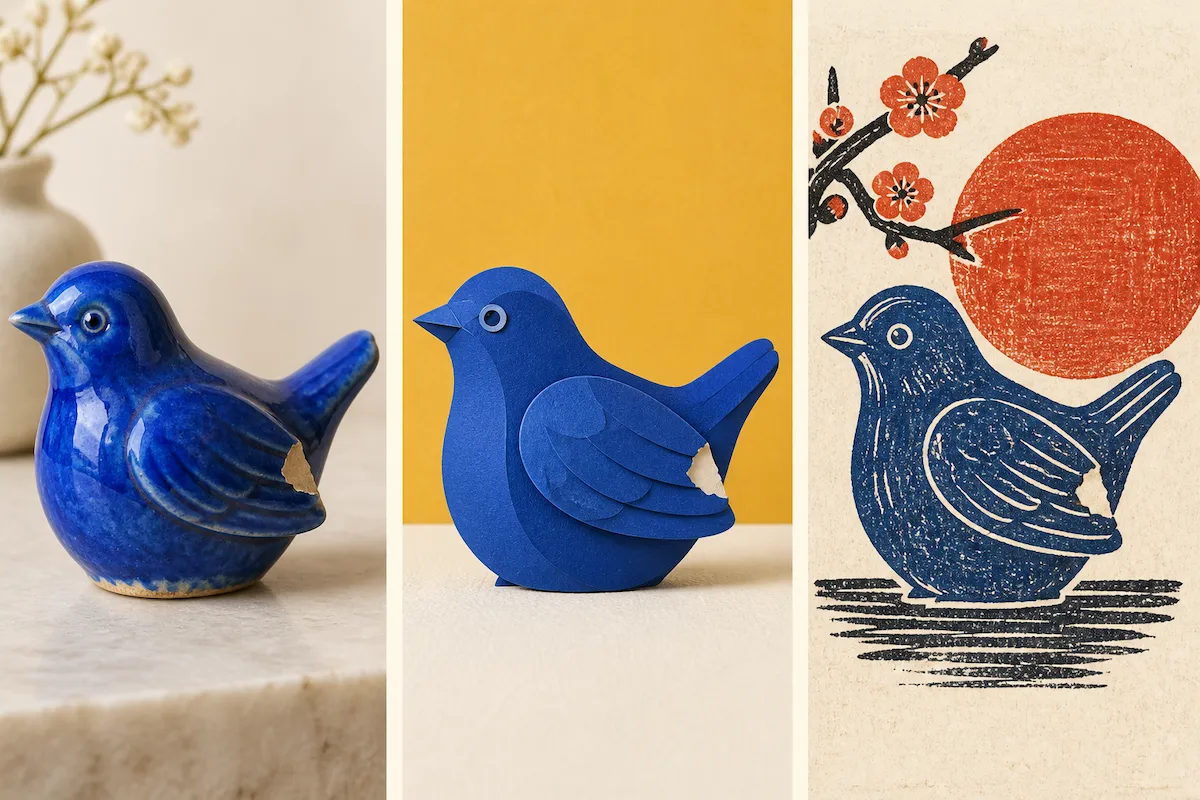
Bring your references into a new image
Start with the people, products, places, or styles you already have. Tell GPT Image 2.5 which details to carry forward and how to combine them in a new scene, so the result begins closer to your intent.
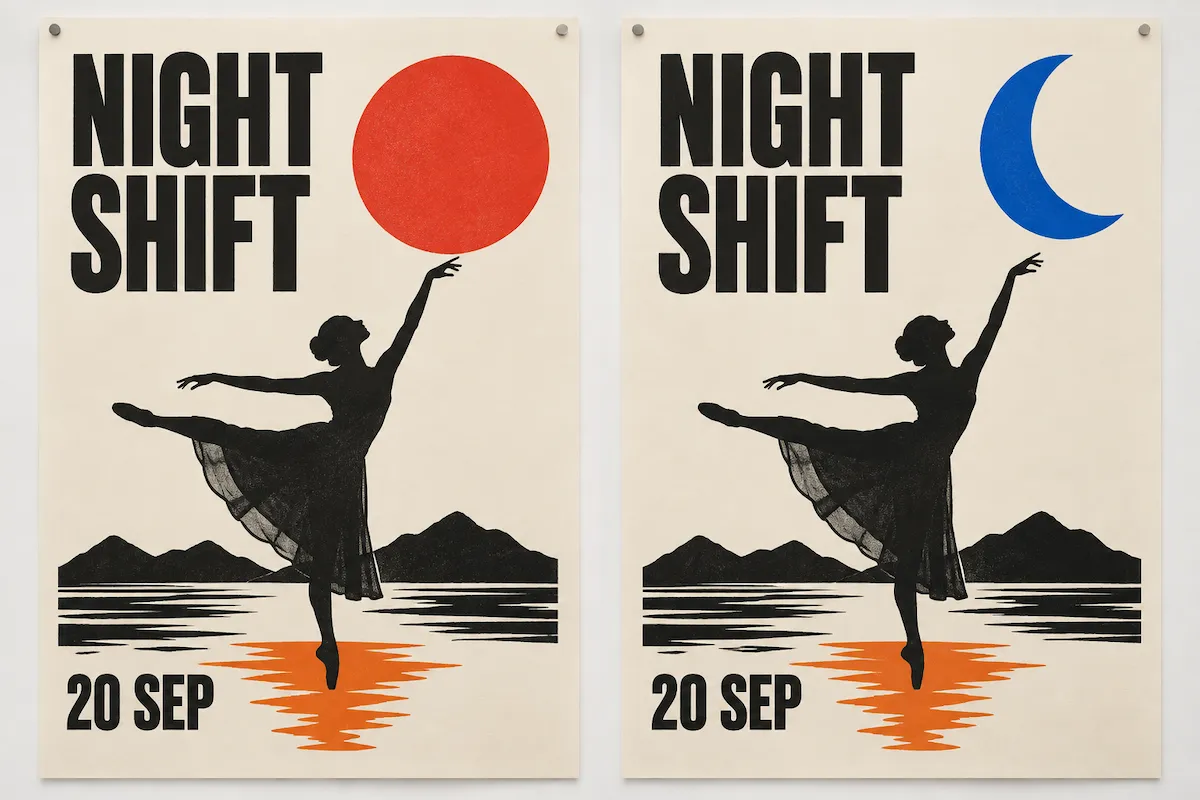
Make precise changes without rebuilding
Replace a product, update a label, remove an object, or change the setting while holding the approved parts steady. Separate what should change from what must stay the same, such as the subject, composition, lighting, or geometry.
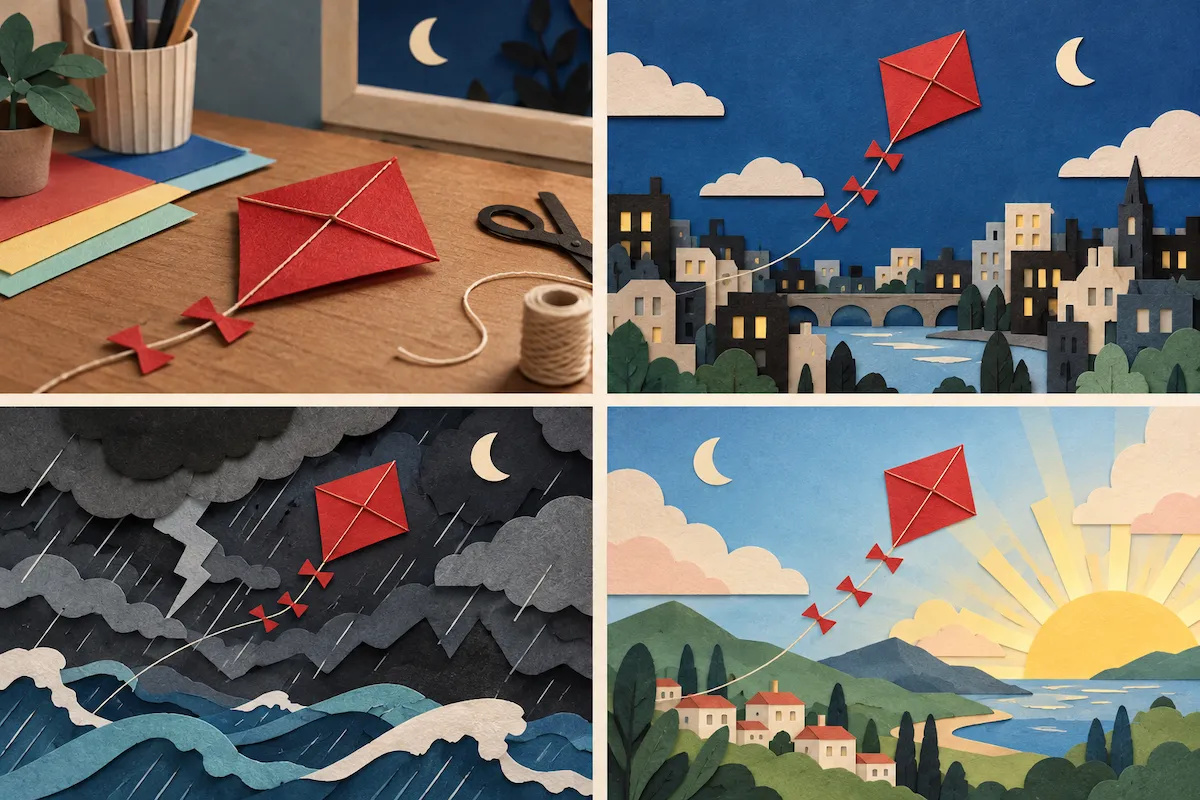
Keep refining from the version you like
Use a promising result as the starting point for the next edit instead of rewriting the entire prompt. Make one focused change at a time, then preserve and build on the creative decisions that still work.
Turn detailed ideas into clear visuals
Create diagrams, instructional graphics, and multi-element scenes where the important parts and their relationships are easy to understand. Describe the audience, labels, sequence, and constraints the image needs to communicate.
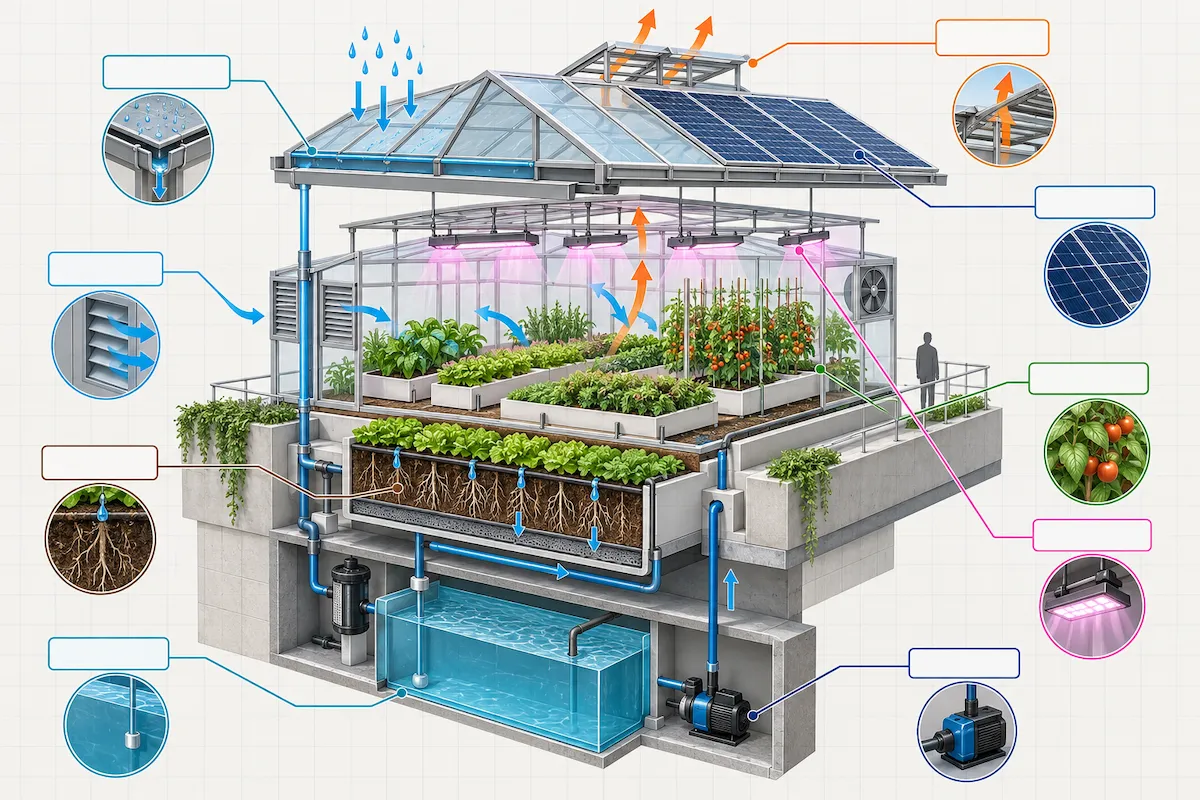
Turn a detailed brief into a first draft
Describe the subject, composition, lighting, visual style, and any text you need in one prompt. GPT Image 2.5 turns those instructions into a complete starting image that you can review, edit, and refine.
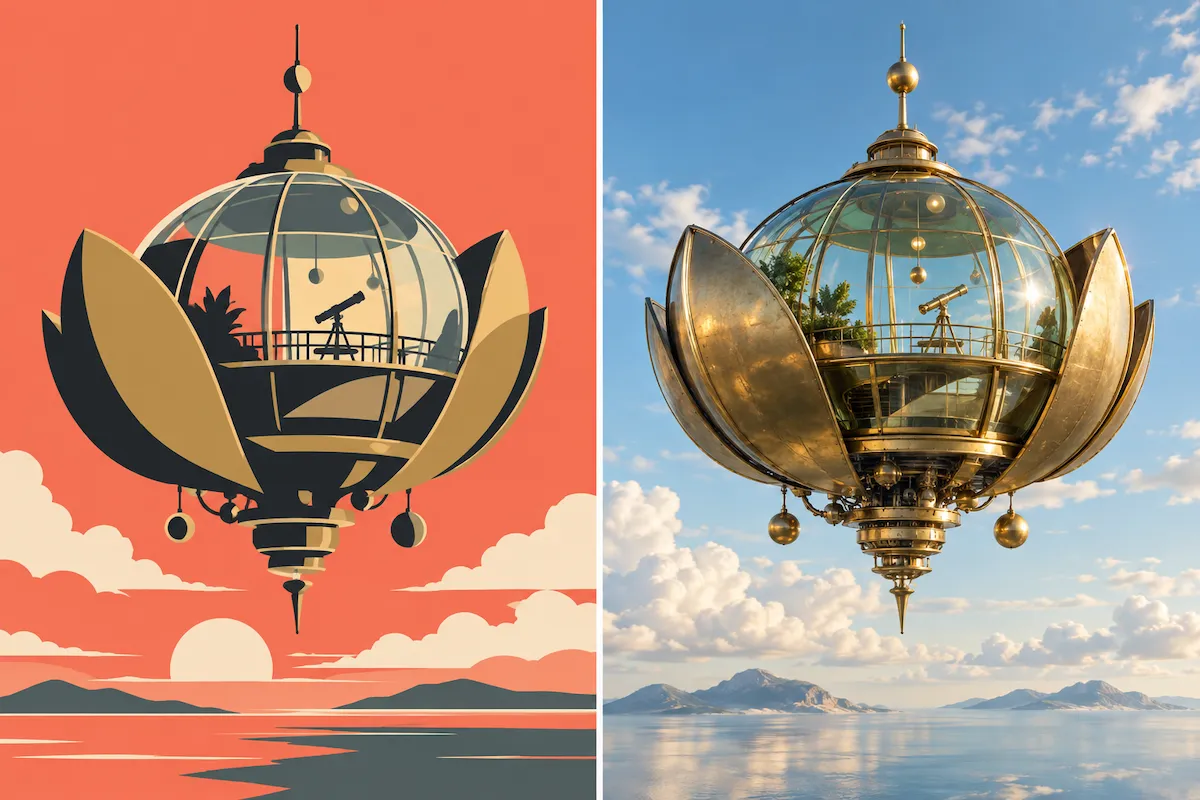
How to use GPT Image 2.5
Describe what you want to create, add a reference image if it helps, then generate and refine your result.
Describe your image
Enter what you want to see. Include important details such as the subject, style, setting, or any text.
Add a reference image (optional)
Upload a reference image when you want to preserve a person, product, or visual style. Explain which details to keep.
Generate and refine
Click Create to generate your image. Review the result, then ask for one specific change at a time if needed.
GPT Image 2.5 use cases
Create campaign visuals, product images, posters, explainers, and storyboards with more control over the details.
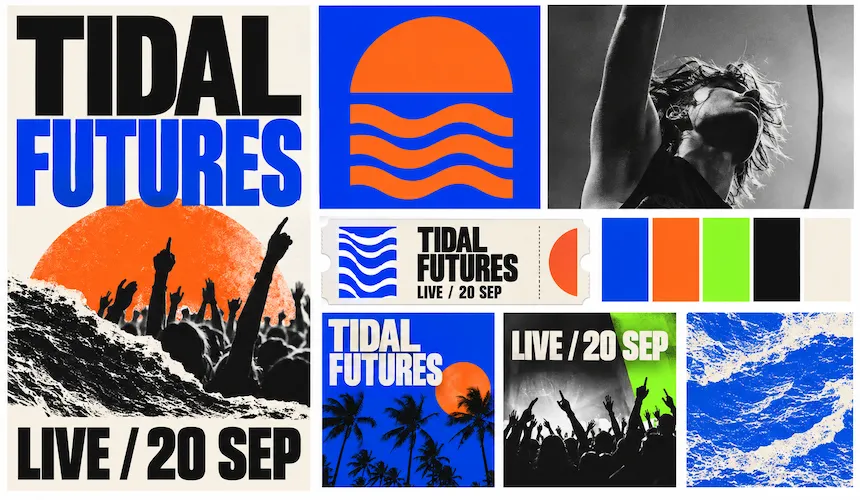
Campaign visuals
Turn a campaign brief into coordinated ads, hero visuals, and launch concepts while keeping the product, mood, and composition aligned.
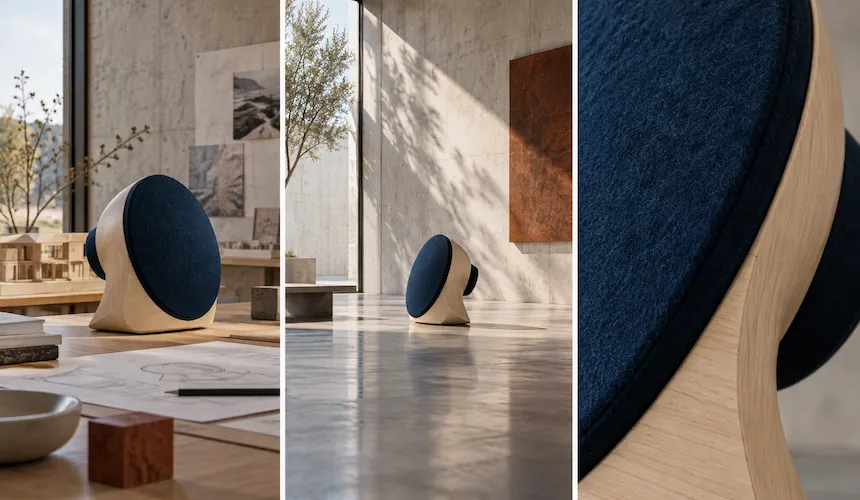
Product image variations
Use a product reference to explore settings, backgrounds, and seasonal variations while preserving its shape, materials, and visual identity.
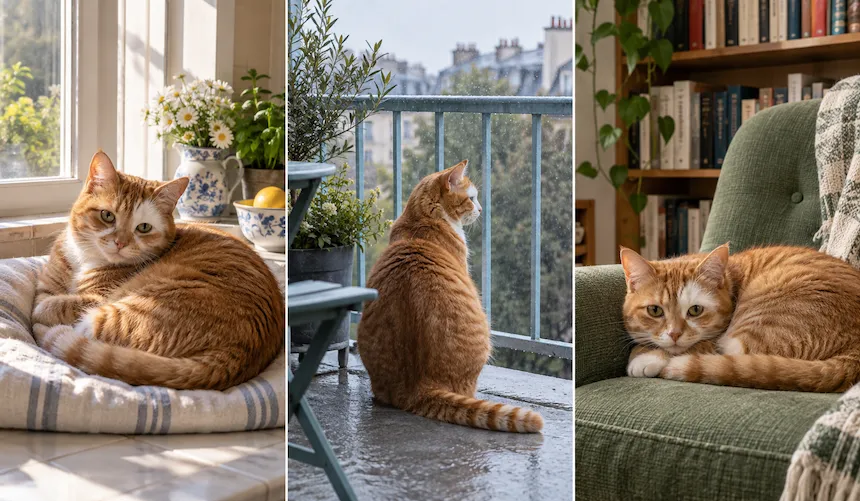
Lifestyle images from references
Transform a person, place, or object into a new moment, wardrobe, setting, or visual style while keeping it recognizable.
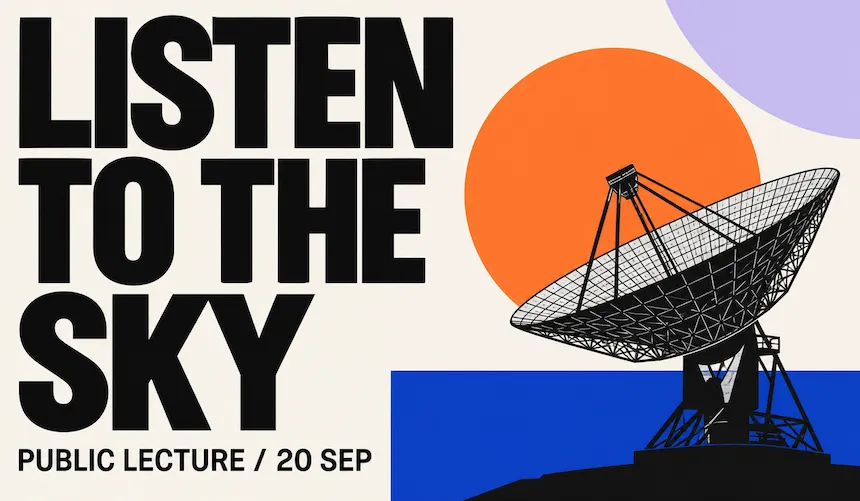
Posters, ads, and graphics with text
Create promotional visuals where headlines and layouts are part of the prompt. Proofread the final text before publishing.
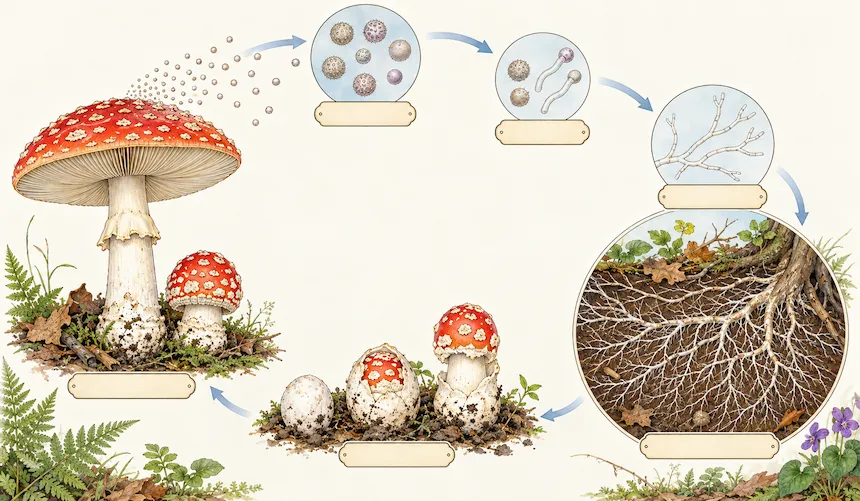
Explainers, diagrams, and learning visuals
Turn a process or lesson into a visual with clear labels, icons, and relationships. Review factual details before sharing.
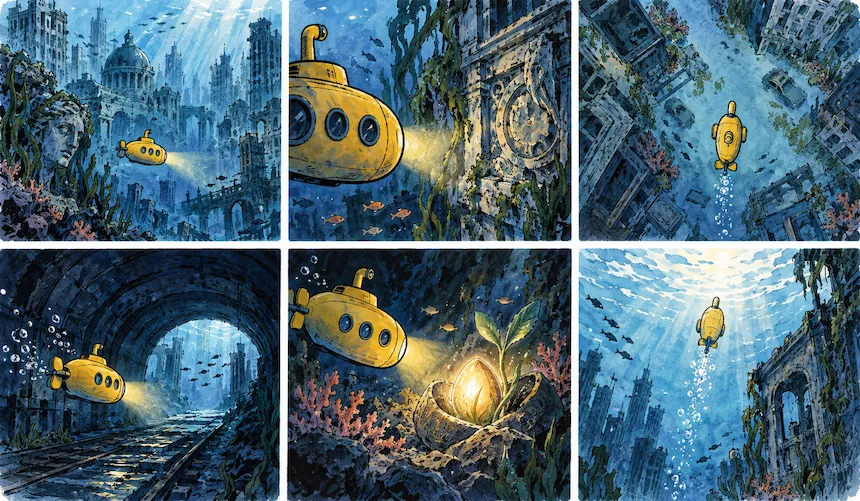
Storyboards and visual concepts
Explore scenes, characters, and camera angles, then refine the most promising version instead of starting over.
Choose Your Plan
Free images include a watermark. Upgrade for watermark-free, high-quality downloads, faster generation, and commercial use.
Starter
50% Off
$9
$19
/month
Billed annually, $228$108/year
800 Credits/mo for generation
Up to 400 images/month
Access to premium AI models
High quality images
Faster generation
Private generation
No watermarks
Commercial use license
Pro
50% Off
$19
$39
/month
Billed annually, $468$228/year
2,000 Credits/mo for generation
Up to 1000 images/month
Access to premium AI models
High quality images
Faster generation
Private generation
No watermarks
Commercial use license
Early access to advanced AI features
Max
50% Off
$39
$79
/month
Billed annually, $948$468/year
4,500 Credits/mo for generation
Up to 2250 images/month
Access to premium AI models
High quality images
Faster generation
Private generation
No watermarks
Commercial use license
Lowest cost per credit
Early access to advanced AI features
GPT Image 2.5 FAQ
GPT Image 2.5 is OpenAI’s image generation and editing model family. It turns detailed prompts and reference images into visuals with an emphasis on subject preservation, precise edits, and consistent results across multiple iterations.
You can try GPT Image 2.5 directly in Wymagine AI. Enter a prompt or upload a reference image in the generator above to create an image, compare variations, and make focused edits in one workflow.
Flare is optimized for fast, high-quality everyday image generation. Sunburst is designed for more demanding visual workflows, where the extra emphasis on quality and editing precision is worth it. The right choice depends on the quality bar and response time your work requires.
GPT Image 2.5 improves the areas that matter most after the first generation: preserving subjects from references, making targeted edits, carrying direction through multiple turns, and interpreting detailed visual instructions. Flare focuses on faster everyday generation, while Sunburst raises the quality bar for premium creative work.
Yes. GPT Image 2.5 is built for focused edits to an existing image. State what should change, then list what must be preserved—such as identity, product geometry, composition, lighting, labels, or visual style. For the most reliable result, make one meaningful change per edit.
Yes. Reference-led creation is one of GPT Image 2.5’s strengths. Identify the purpose of each reference—for example, subject, product, style, clothing, or background—and explain how those elements should combine in the final image.
GPT Image 2.5 is better at text-forward graphics when you quote the required wording and specify its position and typography. Check spelling, legibility, and any brand terms in the final image before publishing, especially for small or dense copy.
The GPT Image 2.5 API supports transparent-background assets. For clean alpha edges around details like hair, glass, shadows, and product contours, use a transparent background with PNG or WebP output and inspect the result before production use.
Describe the subject, intended use, composition, lighting, materials, and visible details. For an edit, separate the change from the constraints. Then iterate deliberately: review the result, make one focused adjustment, and repeat the important details you want to preserve.
Create a stronger first draft with GPT Image 2.5
Turn a prompt or reference image into a polished starting point, then refine the details without starting over.